Introduction to Email Cloud Storage Integration

Imagine this: It's a hectic Monday morning in 2025, and your laptop crashes without warning. Worse, a sudden email server outage hits your provider, wiping access to critical messages, contracts, and attachments you've relied on for weeks. Panic sets in—hours lost, potential deals derailed. But what if your emails were automatically backed up to secure cloud storage? In our cloud-centric world, where data flows endlessly across devices and services, automatic email backups to cloud storage provide essential peace of mind.
Integrating email services with cloud storage creates a seamless pipeline for automated backups. This means emails, attachments, and even metadata like labels or timestamps are duplicated in real-time or on a schedule to your chosen cloud platform. No more manual exports or frantic recoveries. As AI handles more email triage and regulations tighten, these email cloud integrations ensure your data stays protected and accessible.
The key benefits of automatic email backups are clear: enhanced data security against breaches and failures, universal accessibility from any device, compliance with 2025 updates to laws like GDPR (now mandating quantum-resistant encryption for personal data) source, and significant cost savings by avoiding downtime or legal fines. For businesses, this can slash recovery costs by up to 50%, while individuals gain worry-free productivity with Gmail cloud backup or Outlook OneDrive integration.
This guide focuses on major players—Gmail and Outlook—alongside alternatives like Yahoo and iCloud. We'll cover compatible clouds such as Google Drive vs OneDrive, Dropbox, and AWS S3, as detailed in our comparison guide for team collaboration and security features. Tools like Zapier, IFTTT, and native APIs will be our bridges for automation. Whether you're a solo user or managing a team, this article delivers step-by-step setup, best practices, and troubleshooting tailored to 2025's tech landscape for integrating cloud storage with email.
In the sections ahead, we'll explore why these integrations matter, what you need to get started, detailed guides for each service, extensions to other providers, and optimization tips for long-term success with automatic backups in 2025.
Why Integrate Email with Cloud Storage for Automatic Backups?
By 2025, the digital landscape has evolved dramatically. AI-driven email management—think Gmail's Smart Compose on steroids or Outlook's AI-powered Copilot—handles sorting and summarizing, but it amplifies the need for robust automatic email backups. Stricter data sovereignty laws, inspired by EU mandates, require off-site storage to prevent single points of failure. Quantum computing threats loom, with experts warning of "harvest now, decrypt later" attacks on legacy encryption source.
Without backups, risks abound. Email providers might pivot (remember the 2024 Yahoo redesign controversies?), hacks could expose years of correspondence, or account suspensions from policy violations could lock you out. A single breach can cascade: lost client emails mean missed opportunities, or worse, regulatory non-compliance fines.
The advantages of email cloud storage integration flip the script:
- Real-time syncing: Changes in your inbox mirror instantly to the cloud, capturing everything from drafts to deletions.
- Version control: Track email histories, reverting to previous states like a Git repo for your correspondence.
- Easy recovery: Restore from any device, even if your primary account is compromised.
- Multi-cloud strategies: Diversify storage to hedge against provider-specific outages, blending personal and enterprise tools.
Choosing the right combination for Gmail cloud backup or Outlook integration depends on your ecosystem. Native pairs shine for simplicity, while cross-platform options offer flexibility.
| Pairing | Best For | Seamless Integration | Cost (Free Tier) | Security Highlights |
|---|---|---|---|---|
| Gmail + Google Drive | Google Workspace users | Native API, zero setup | 15GB shared | Built-in 2FA, PQC-ready |
| Outlook + OneDrive | Microsoft 365 teams | Graph API sync | 5GB free | Azure AD, compliance tools |
| Yahoo + Dropbox | Cross-platform casuals | Via Zapier/IFTTT | 2GB Dropbox | OAuth, basic encryption |
| iCloud + AWS S3 | Enterprise scalability | Custom scripts | 5GB iCloud | Advanced PQC options |
These pairings balance ease and power for automatic backups in 2025, but always align with your workflow—Google for collaboration, Microsoft for business depth.
To underscore the urgency of integrating cloud storage with email, consider the breach landscape:
67%
of data breaches in 2024 involved external actors (e.g., cybercriminals), 30% from internal actors via compromised credentials (Verizon DBIR) source
And another stark reality for email backup security:
$4.44M
global average breach cost in 2025, ~$160 per record (IBM) source
Automatic backups aren't optional—they're a shield against these threats, especially with phishing and ransomware targeting emails in 90% of financially motivated attacks source.
Prerequisites and Tools for Email Cloud Integration
Before diving in, ensure you're set up for success with automatic email backups. You'll need an active email account (e.g., Gmail or Outlook) and a cloud storage subscription—free tiers suffice for light use, but paid plans unlock automation limits. A stable internet connection (at least 10Mbps upload) is crucial for syncing large attachments, and basic tech savvy helps with API tweaks.
Recommended tools for Gmail cloud backup and Outlook OneDrive integration span automation platforms, native options, and third-party software:
- Automation platforms: Zapier for no-code zaps (2025 updates include AI filters); IFTTT for simple applets; Microsoft Power Automate with enhanced AI triggers for conditional flows.
- Native options: Google Workspace APIs for granular control; Microsoft Graph API for Outlook/OneDrive deep integration.
- Third-party software: Backupify for Gmail/Outlook automated exports to S3; Spanning Cloud Apps for enterprise versioning and compliance reporting.
Security is paramount in 2025 for integrating cloud storage with email. Enable two-factor authentication (2FA) everywhere, use OAuth for token-based access (avoiding password sharing), and align with post-quantum cryptography (PQC) standards.
NIST finalized three PQC standards on August 13, 2024: FIPS 203 (CRYSTALS-Kyber for encryption), FIPS 204 (CRYSTALS-Dilithium), and FIPS 205 (SPHINCS+ for signatures). These protect email backups from quantum threats like Shor's algorithm, which could crack OAuth in Gmail/Outlook APIs. Audit your setups for PQC compatibility to meet GDPR updates source.
For example, enable Kyber in TLS 1.3 for API calls source. Tools like Boxcryptor add hybrid encryption layers.
Costs vary: Free tiers (e.g., Zapier for 100 tasks/month) handle basics, but starters like Zapier ($20/month) or Power Automate ($15/user/month) add unlimited runs and AI. Enterprise tools like Backupify start at $3/user/month, factoring in storage fees (e.g., Drive at $0.02/GB beyond free).
Step-by-Step Guide: Gmail Integration with Cloud Storage for Automatic Backups
Gmail's ecosystem makes Gmail cloud backup straightforward, blending native tools with third-party magic for automatic email backups.
Native Google Drive Backup Setup
Google Takeout offers quick exports, but for automation, leverage 2025's Google Apps Script updates for scheduling.
Use this numbered approach for integrating cloud storage with Gmail:
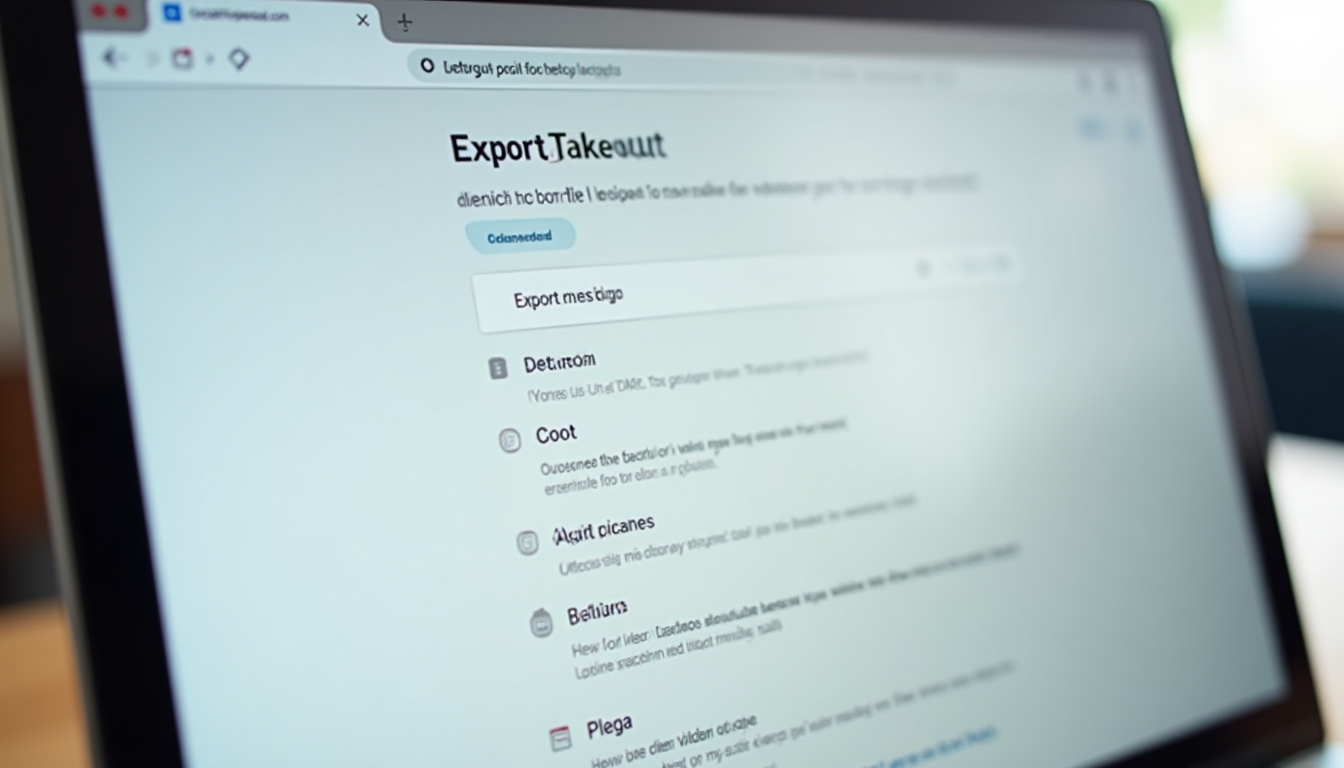
Access Takeout Settings
Go to takeout.google.com, sign in, and select "Mail" (deselect others to focus). Choose MBOX format for compatibility.
Export to Drive
Create export > Deliver to Google Drive > Set frequency (daily/weekly via Apps Script: script.google.com, write a trigger for Time-driven events).
Automate Scheduling
In Apps Script, code a function like function backupMail() {{{{{{{{{{{{{{{{{{{{{{{{{{{{{{{{ /* API call to export */ }}}}}}}}}}}}}}}}}}}}}}}}}}}}}}}} and set triggers. 2025 updates allow AI-assisted scripting.
This creates recurring ZIPs in Drive, including labels and attachments for seamless Gmail cloud integration.
Third-Party Automation for Gmail
For dynamic syncing, Zapier excels in automatic backups.
- Sign up at zapier.com, connect Gmail and Drive.
- Create a Zap: Trigger "New Email" (filter by label/sender) > Action "Upload File to Drive" (attachments as PDFs).
- Enable for labels like "Important" to prioritize.
IFTTT: At ifttt.com, build an applet—Gmail "New email in inbox" triggers Dropbox "Upload file from URL," grabbing attachments via links.
Advanced: Custom Scripts with Gmail API and Drive API
For pros, use APIs (developers.google.com). Enable in Google Cloud Console, get OAuth credentials.
Sample Python script (run via cron for automation):
from googleapiclient.discovery import build
service = build('gmail', 'v1', credentials=creds)
results = service.users().messages().list(userId='me', q='is:important').execute()
# Filter and upload to Drive API
Filter high-priority emails, encrypt with Kyber if needed source. This handles 1000s of emails efficiently for Gmail cloud backup.
Testing and Verification for Gmail Setup
Send a test email with attachment. Wait 5-10 minutes, check your cloud folder for the file and metadata JSON. Use Drive's version history to confirm automatic email backups.
Step-by-Step Guide: Outlook Integration with Cloud Storage
Outlook's Microsoft ties offer robust, AI-enhanced backups for Outlook OneDrive integration.
Native OneDrive Sync for Outlook
Export PST files and automate via Power Automate.
Steps for integrating cloud storage with Outlook:
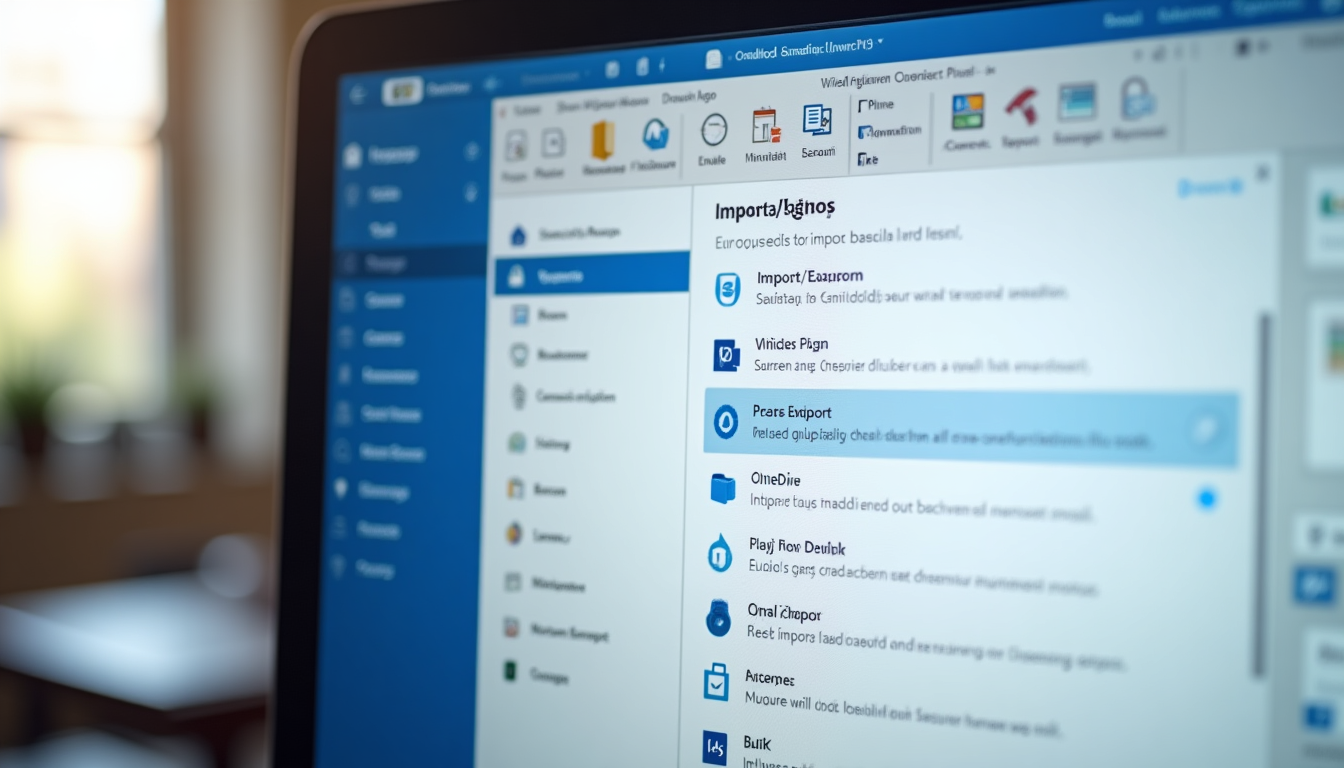
- In Outlook desktop/web: File > Open & Export > Import/Export > Export to a file > Outlook Data File (.pst).
- Select folders, save to OneDrive (integrates directly).
- Automate: In Power Automate (powerautomate.microsoft.com), create flow—Trigger "When a new email arrives (V3)" > Action "Create file in OneDrive" (convert email to MSG/PDF).
- 2025 AI triggers: Add conditions like "If priority high, backup immediately."
Set rules for auto-sync, running off-peak.
Third-Party Automation for Outlook
Power Automate shines for natives: Flow for email > Save to OneDrive or Azure Blob (for S3-like scale).
Zapier cross-platform: Trigger "New Email in Outlook" > Action "Upload to Dropbox," supporting shared mailboxes—vital for teams.
Enterprise Options for Outlook Backups
For businesses, Exchange Online + OneDrive for Business ensures compliance (e.g., audit logs). Use Retention Policies to auto-archive to cloud, meeting 2025 sovereignty rules source.
Testing and Verification for Outlook
Simulate receipt: Forward a test email. Check OneDrive for the file, metadata (sender, date), and AI tags. Verify via mobile app access for automatic backups in 2025.
Integrating Other Email Services with Cloud Storage
Beyond giants, smaller providers need creative approaches for email cloud integration.
Yahoo Mail Cloud Backup
Yahoo's native tool downloads data as ZIP, but for automation, use IMAP.
- Download at privacy.yahoo.com > Data & Privacy > Request data.
- Automate: MultCloud (multcloud.com) syncs IMAP to Drive. Or Zapier: "New Yahoo email" > Drive upload.
Pros: Simple for attachments. Cons: Limited API, so third-party reliant.
iCloud Mail Integration (Apple Ecosystem)
Leverage Apple's tools for iCloud email backups.
- Enable Mail in iCloud settings (appleid.apple.com).
- Use Shortcuts app (2025 Siri enhancements automate): Trigger "New iCloud email" > Action "Save to iCloud Drive" or Dropbox via API.
- Steps: Shortcuts > Add Automation > Mail arrival > Get Attachments > Save File.
Seamless in Apple world, with end-to-end encryption.
Other Providers (ProtonMail, Zoho) for Automatic Backups
ProtonMail emphasizes privacy—use IMAP exports to Thunderbird, then plugins like Cloud Sync for Drive.
Zoho: Native CRM integrations, automate via Zapier to S3.
General tip: rclone.org for CLI syncing (e.g., rclone sync imap://user@protonmail.com /path/to/s3).
ProtonMail Pros
Zero-knowledge encryption; privacy-focused for sensitive backups.
Cons
Limited native APIs; slower IMAP for large volumes.
Zoho Pros
Built-in automation; scales for business emails.
Zoho Cons
Paid for advanced features; ecosystem lock-in.
For all, prioritize IMAP over POP3 to retain server copies in automatic email backups.
Best Practices and Optimization for Email Cloud Backups in 2025
Maximize your setup with smart strategies for integrating cloud storage with email. For automation, filter attachments only (>5MB) to save space; compress via tools like 7-Zip. Use AI for deduplication—Google's Duet AI in Workspace flags duplicates pre-backup, cutting storage 30%.
Rotate API keys quarterly and monitor logs with tools like Google Cloud Logging. For scalability in 100GB+ inboxes, opt for hybrid setups: Native for daily, third-party for archives. Schedule off-peak (e.g., 2AM) to manage bandwidth, and integrate mobile apps like Drive for on-the-go verification.
Security and privacy: Beyond PQC, use Boxcryptor for client-side encryption, as explained in our Zero-Knowledge Cloud Storage: 2025 Privacy Guide, which covers essential features like end-to-end encryption to protect email backups from breaches source. Monitor breaches—phishing costs average $4.8 million per incident source.
For large-scale: Shard backups across clouds (e.g., emails to Drive, attachments to S3). Multi-email users? Centralize with Power Automate hubs.
Performance tweaks: Limit sync to 500 emails/hour; use VPNs for public Wi-Fi. Legal notes: Respect ToS—avoid backing up sensitive content without consent; comply with data export limits.
In 2025, these email cloud integrations aren't just backups—they're your data fortress. Start small, test rigorously, and scale confidently. To select the ideal secure cloud provider tailored to your backup needs, explore our Cloud Comparison Tool for comparing affordable options under $5 per month. Your inbox, secured.
Ready to Secure Your Emails?
Start your free trial of Zapier today to set up automatic email backups in minutes.
Get Started with ZapierExperts predict cryptographically relevant quantum computers by 2030-2035; early transition avoids 'harvest now, decrypt later' risks for encrypted backups source.