Introduction to iCloud Photo Backup in 2025
In the digital landscape of 2025, iCloud photo backup remains Apple's premier solution for seamless, secure storage and synchronization of photos across iOS and Mac devices. iCloud Photos goes beyond basic cloud storage, acting as an encrypted vault that automatically safeguards your images while ensuring easy access via the native Photos app on iPhones, iPads, and Macs. With end-to-end encryption built in, iCloud protects your photo library from escalating cyber threats, making it indispensable for users prioritizing privacy.
The need for secure photo backup has intensified. Data breaches have surged, with over 2.6 billion personal records exposed in the last two years alone. Cloud data was involved in more than 80% of 2023 breaches, which saw a 75% rise in intrusions. As cybercrime costs are forecasted to hit $10.5 trillion annually by 2025—fueled by AI-powered threats like a 1,265% spike in phishing—services like iCloud with robust encryption are vital for defending photo libraries.
Key advantages of iCloud Photos include: - Automatic background backups without user intervention - Real-time syncing across Apple ecosystem devices - Effortless access and management through the Photos app - Advanced privacy features like Apple Intelligence for on-device organization
This comprehensive guide walks you through setting up iCloud for secure photo backup on iOS 18+ and macOS Sequoia+, covering prerequisites, step-by-step instructions, usage tips, security boosts, and optimization for 2025. You'll end up with a reliable, automated system leveraging Apple's innovations to shield your memories from digital risks.
2.6B
personal records exposed in data breaches over the past two years (Apple Newsroom, 2023)
Prerequisites for Secure iCloud Photo Backup Setup
Establishing a strong base is essential for iCloud photo backup efficiency and security in 2025's high-threat environment. Focus on these core requirements to ensure smooth operation.
- Active Apple ID: Your entry point to iCloud services—create or access it at appleid.apple.com. Always enable two-factor authentication (2FA) for added protection, as phishing targets cloud credentials in over 50% of attacks.
- Compatible Devices: iPhone or iPad with iOS 18+ for AI-enhanced photo tools; Mac with macOS Sequoia (15+) for optimized syncing.
- iCloud Storage: Start with 5GB free, but upgrade to iCloud+ (50GB for $0.99/month up to 12TB for $59.99/month) for 2025's high-res media. Monitor via Settings > [Your Name] > iCloud on iOS or System Settings > Apple ID > iCloud on Mac. Use Family Sharing to share costs, as detailed in our Best Secure Cloud Storage for Families 2025: Top Picks, which highlights iCloud+ for protecting shared photos with end-to-end encryption.
- Stable Internet: Wi-Fi preferred to handle large uploads without data overages. Leverage iCloud+ extras like Private Relay for IP masking and Hide My Email for secure sharing.
- Device Security: Activate biometrics (Face ID/Touch ID) and generate recovery keys. Human errors drive 68% of breaches, so these steps fortify your secure photo backup setup.
With these in place, proceed to configuration, emphasizing 2FA to counter phishing in iCloud photo access.
Enable two-factor authentication (2FA) and generate recovery keys to mitigate phishing risks during iCloud setup. Phishing affects over half of organizations, so this step is critical for protecting your photo library.
Step-by-Step Guide: Setting Up iCloud Photos on iOS Devices
Configuring iCloud photo backup on iOS is straightforward through the Settings app, delivering end-to-end encryption for iOS 18+ users.
Step 1: Sign In and Secure Your Apple ID
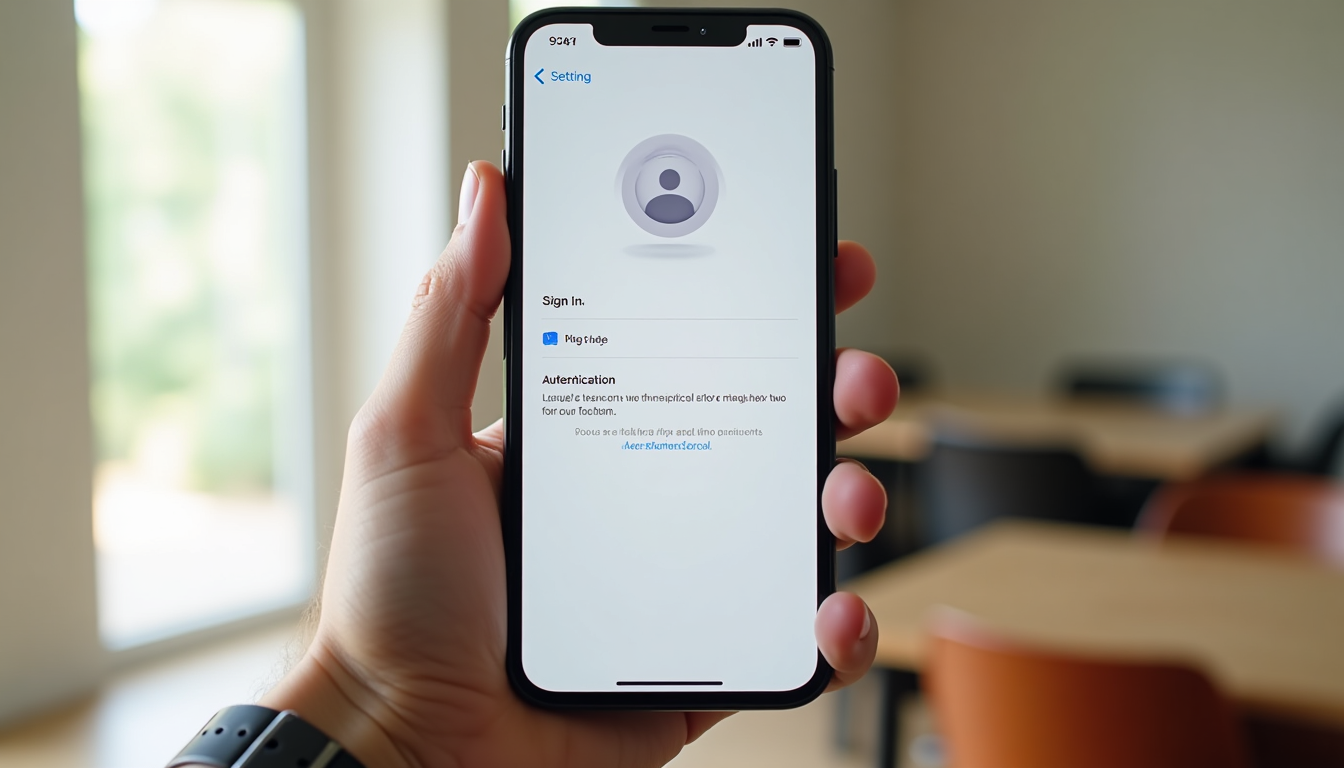
Launch Settings on your iPhone or iPad. Tap your name (or "Sign in to your iPhone"), input your Apple ID credentials, and complete 2FA verification. For top-tier security, navigate to [Your Name] > iCloud > Advanced Data Protection and enable it—this applies end-to-end encryption to photos, inaccessible even to Apple.
Step 2: Activate iCloud Photos Syncing
Head to Settings > [Your Name] > iCloud > Photos. Switch on "iCloud Photos." Opt for "Optimize iPhone Storage" (keeps optimized versions locally, originals in the cloud) or "Download and Keep Originals." This choice enhances performance for 2025 devices without compromising encryption during transfers.
Step 3: Set Up Automatic Backups
In iCloud settings, confirm "Sync this iPhone" for Photos. For device-wide protection, go to Settings > [Your Name] > iCloud > iCloud Backup, enable it, and select "Back Up Now." Automate backups to occur on Wi-Fi while charging and locked.
Step 4: Confirm iCloud Photo Backup is Working
Snap a test photo in the Photos app. Monitor sync progress in Settings > [Your Name] > iCloud > Photos ("Uploading" or "Up to Date"). Verify on iCloud.com. Success means your secure iCloud photo backup is active.
iOS 18+ integrates Apple Intelligence for on-device AI features like smart tagging, bolstering privacy in iCloud Photos.
Sign In to iCloud
Open Settings and log in with your Apple ID, enabling 2FA for secure access.
Enable iCloud Photos
Toggle on in iCloud settings and select storage optimization to start syncing.
Configure Backups
Turn on iCloud Backup and run an initial "Back Up Now" for your library.
Verify Sync
Test with a new photo and check status in Photos settings or iCloud.com.
Step-by-Step Guide: Setting Up iCloud Photos on Mac
Pair iOS with Mac setup for ecosystem-wide iCloud photo backup. macOS Sequoia+ delivers efficient, secure syncing tailored for 2025.
Step 1: Sign In to iCloud on Mac
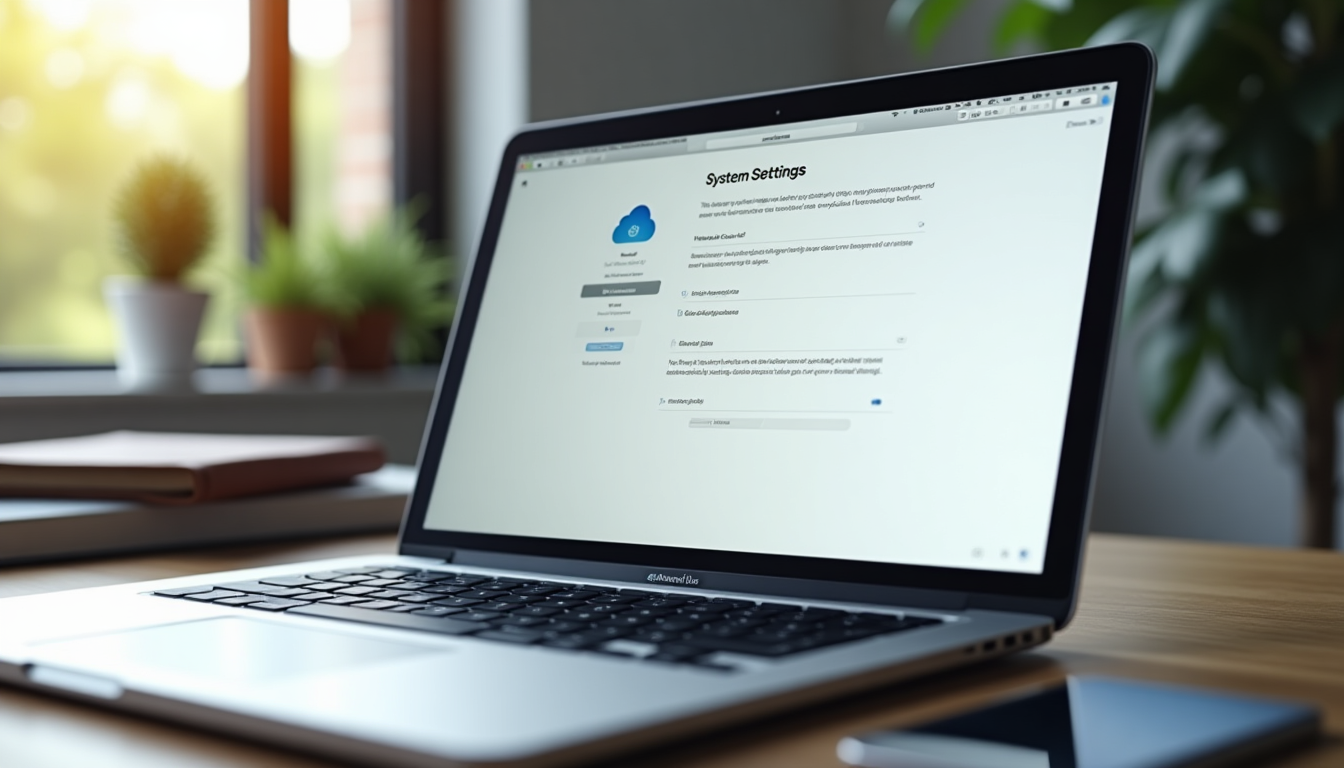
From the Apple menu, select System Settings > Apple ID (or iCloud). Enter details and verify with 2FA. Enable Advanced Data Protection in iCloud settings for end-to-end encryption of photos via Secure Enclave.
Step 2: Turn On iCloud Photos
In the Photos app, go to Photos > Settings > iCloud and select "iCloud Photos." Choose "Optimize Mac Storage" or "Download Originals to this Mac." Transfers use TLS 1.3 encryption, with 256-bit AES at rest.
Step 3: Handle Library Management and Local Backups
Designate your Photos library as default in Photos > Settings > General. Supplement with Time Machine: System Settings > General > Time Machine, attach a drive, and configure. This ensures encrypted local copies alongside iCloud.
Step 4: Test Cross-Device Synchronization
Add a test photo in Mac's Photos app. Check appearance on iOS or iCloud.com. Address delays with stable Wi-Fi.
macOS 2025 updates may enhance Vision Pro integration for spatial photos, all secured by iCloud's framework.
How to Use iCloud Photos for Everyday Secure Backup
Once configured, iCloud photo backup runs automatically, uploading from your camera roll for access via Photos, iCloud.com, or iCloud for Windows. Real-time edits and deletions propagate instantly across devices. Apple's 2024 reports show over 90% end-to-end encryption adoption with Advanced Data Protection.
For sharing, use Photos > Share > Add to Shared Album with Apple ID invites. Family Sharing shares storage; create time-limited links for controlled access.
2025 highlights in iCloud Photos:
iCloud+ Custom Email Domain
Use a personal domain for anonymous photo sharing, keeping your real email hidden from recipients.
Apple Photos AI Integration
Secure, on-device editing with Apple Intelligence before backup, like generative fills that draw from your private library without cloud exposure.
Recovery from Backups
Restore lost photos via iCloud.com > Photos > Recently Deleted, or full device restore in Settings > General > Transfer or Reset > Erase All Content.
Apple Intelligence in iOS 18, iPadOS 18, and macOS Sequoia powers on-device tools like Image Playground, using iCloud Photos data privately. Track storage in Settings > [Your Name] > iCloud > Manage Account Storage.
Ready to Secure Your Photos?
Upgrade to iCloud+ today for enhanced storage and privacy features. Visit apple.com/icloud to get started.
Boosting Security for iCloud Photo Backups in 2025
iCloud's baseline security is strong, but elevate it with Advanced Data Protection for full end-to-end encryption on Photos—covering 23 categories like backups and notes, as explored in our Zero-Knowledge Cloud Storage: 2025 Privacy Guide, which details client-side encryption to ensure only you access your data. Standard protections use TLS 1.3 and 256-bit AES, but ADP ensures only you hold access keys.
Secure your account: In Settings > [Your Name] > Sign-In & Security > 2FA, enable and create recovery keys (store offline). Use appleid.apple.com for app-specific passwords.
Privacy enhancers: - iCloud+ Hide My Email for temporary addresses in shares - Private Relay to conceal your IP - Quarterly password updates and VPN on public Wi-Fi - Lockdown Mode in Settings > Privacy & Security for targeted threats
2025 brings quantum-resistant algorithms like CRYSTALS-Kyber to iCloud, plus AI detection for phishing. Only 4% of organizations deem connected devices fully secure—prioritize biometrics and alerts.
"iCloud employs robust encryption for user data, including Photos: encrypted in transit with TLS 1.3 and at rest on servers using 256-bit AES, with device-specific keys from Secure Enclave preventing unauthorized decryption."
Best Practices and Tips to Optimize iCloud Photo Backup
Maximize your iCloud photo backup with these strategies for security, speed, and savings in 2025.
- Storage Management: Use Photos > Albums > Duplicates to remove extras; export to drives or Shared Photo Library for family.
- Performance Tweaks: Disable cellular data in Settings > Photos > Cellular Data; pause syncing in low battery.
- Privacy Checks: Audit shared albums in Photos; enable Face ID lock and iCloud notifications.
iCloud excels for Apple users—compare plans below:
| Plan | iCloud+ (Apple) | Google One (Alternative) |
|---|---|---|
| Storage | 50GB–12TB | 100GB–30TB |
| Encryption | End-to-End (with ADP) | Standard (Optional Advanced) |
| Integration | Seamless iOS/Mac | Cross-Platform, Less Native |
| Privacy Features | Private Relay, Hide My Email | VPN, Dark Web Monitoring |
| Cost (Entry) | $0.99/mo (50GB) | $1.99/mo (100GB) |
Amid 75% cloud intrusion growth in 2023 and $4.88 million average breach costs, enable ADP to shield photos. AI phishing up 1,265% demands on-device Apple Intelligence. Broader ADP adoption and Lockdown Mode future-proof your setup. For alternatives to iCloud tailored to your photo backup needs, try our Cloud Comparison Tool, which lets you evaluate secure providers side-by-side based on encryption, pricing, and features.
Regularly review iCloud storage and enable Advanced Data Protection for comprehensive end-to-end encryption across 23 categories, including Photos.
Need more help with iCloud setup? Check Apple's official guide at support.apple.com/icloud or contact support for personalized advice.