Introduction to Recovering Deleted Files from Cloud Storage
Cloud storage has transformed data management in the digital era, offering anytime, anywhere access via the internet. Popular services like Google Drive, Dropbox, and OneDrive are vital for storing personal photos, business documents, and more. Yet, this ease comes with risks—accidental deletions happen frequently. A simple "delete" during file organization, sync glitches, lost devices, or unauthorized access can erase data instantly. In 2025, as remote and hybrid work dominate, these cloud storage recovery challenges are on the rise, escalating minor mistakes into major disruptions.
Recovering deleted files from cloud storage is crucial amid evolving services. For businesses, data loss can halt operations, erode customer confidence, and incur steep expenses, as explored in our best secure cloud storage for small businesses guide, which highlights tailored solutions to minimize such risks. Key statistics reveal the high stakes in modern cloud environments.
85.6%
of data loss incidents occur in cloud storage, compared to 14.4% in local servers, highlighting vulnerabilities in recovery processes due to shared responsibility models (Infrascale Data Loss Statistics).
67.7%
of businesses report significant data loss, with only 32.3% experiencing minimal impact; 93% of affected companies go bankrupt (Infrascale Data Loss Statistics).
This comprehensive 2025 guide details how to recover deleted files from Google Drive, Dropbox, and OneDrive, covering their latest recovery tools. It includes actionable steps tailored to each platform, retention policies, and plan variations. Success in Google Drive file recovery, Dropbox recover files, or OneDrive restore deleted files hinges on service rules, account tiers (free plans offer shorter windows than paid), and swift response. Files purged beyond retention or compromised by malware may be unrecoverable. Always check official support for the latest updates, as policies evolve.
Only 27.1% cloud security perception exists among tech leaders, with 7.2% viewing it as highly secure, yet 94% of managers note security gains post-adoption. Cloud storage provides flexibility, durability, and scalability, but demands safeguards like encryption, identity management, and access controls to avoid errors exposing data.
Over 80% of companies rely on multiple SaaS apps, but 37% unused licenses stem from mismanagement, fostering disorganized storage and elevated data loss risks.
In the following sections, explore proven methods to recover deleted files from cloud storage and implement prevention strategies for Google Drive, Dropbox, and OneDrive.
Ready to Secure Your Cloud Files?
Upgrade to paid plans for extended retention and advanced recovery features on Google Drive, Dropbox, or OneDrive today.
Start with Google Drive Explore Dropbox Try OneDrivePrerequisites for Cloud Storage File Recovery and Prevention Tips
Preparation boosts your odds of successfully recovering deleted files from cloud storage and averts future losses. Most platforms hold deleted items for 30 to 93 days, though this differs by plan. Respond promptly, as purged files are typically irretrievable.
Confirm you're in the right account—double-check emails or multi-account configurations. Shared or business files might need admin access. Update to 2025 app versions and use browsers like Chrome or Edge, alongside desktop/mobile apps for cross-verification.
Recovery relies on built-in platform tools. For tougher scenarios, trusted third-party options like Recuva can help, but steer clear of dubious software to avoid security threats or file damage—always antivirus-scan downloads.
Prevention underpins effective cloud storage recovery. Activate version history, set up automated backups—as outlined in our cloud sync vs backup guide, which clarifies essential distinctions for better data protection—and enforce multi-factor authentication (MFA) against unauthorized deletions.
Enable Multi-Factor Authentication (MFA) across services: For Microsoft 365/OneDrive via Admin Center, reducing unauthorized access risk by 99%; Dropbox requires 2FA; Google Workspace uses Admin Console for team permissions (Advance IT SaaS Management Guide).
Adopt role-based access controls (RBAC), single sign-on (SSO) via Okta or Microsoft Entra ID, and data loss prevention (DLP) to curb risky sharing. Leverage Microsoft Defender or Google Security Center for monitoring. Automate user deactivation on offboarding to stop post-exit deletions. Segregate personal files in OneDrive and team folders in Dropbox/Google Drive by department to minimize sync issues. Perform quarterly audits to eliminate unused licenses and spot shadow IT. Schedule backups during migrations or setups to protect against deletions or ransomware. Apply SharePoint retention policies for timelines like 30-93 days (Advance IT SaaS Management Guide).
Businesses squander up to 30% SaaS budget waste on redundancies or idle subscriptions, heightening data loss from poor oversight.
For a quick overview of retention policies in 2025:
| Service | Free Retention | Paid Retention | Key Prevention Feature |
|---|---|---|---|
| Google Drive | 30 days | Extended (Google Workspace) | Versioning in shared drives |
| Dropbox | 30 days | Up to 180 days (Business) | Rewind for account rollbacks |
| OneDrive | 30 days | 93 days (Microsoft 365) | SharePoint retention policies |
These practices fortify your setup. Lacking managed offsite backups leaves organizations vulnerable to data loss, breaches, and attacks (Infrascale Data Loss Statistics).
How to Recover Deleted Files from Google Drive in 2025
Google Drive seamlessly ties into Gmail and Docs, but deletions are inevitable. Versioning aids in distinguishing business and personal files for smoother recovery, with export options like Google Takeout as backups (Advance IT SaaS Management Guide).
Accessing the Trash in Google Drive for File Recovery
Begin with recent deletions.
Step One: Log In
Open drive.google.com in your browser or launch the Google Drive app on mobile/desktop. Sign in with your Google account—ensure it's the right one if you have multiple.
Step Two: Navigate to Trash
In the web interface, click "Trash" in the left sidebar. On mobile, tap the menu (three lines) and select "Bin." Deleted items appear with timestamps.
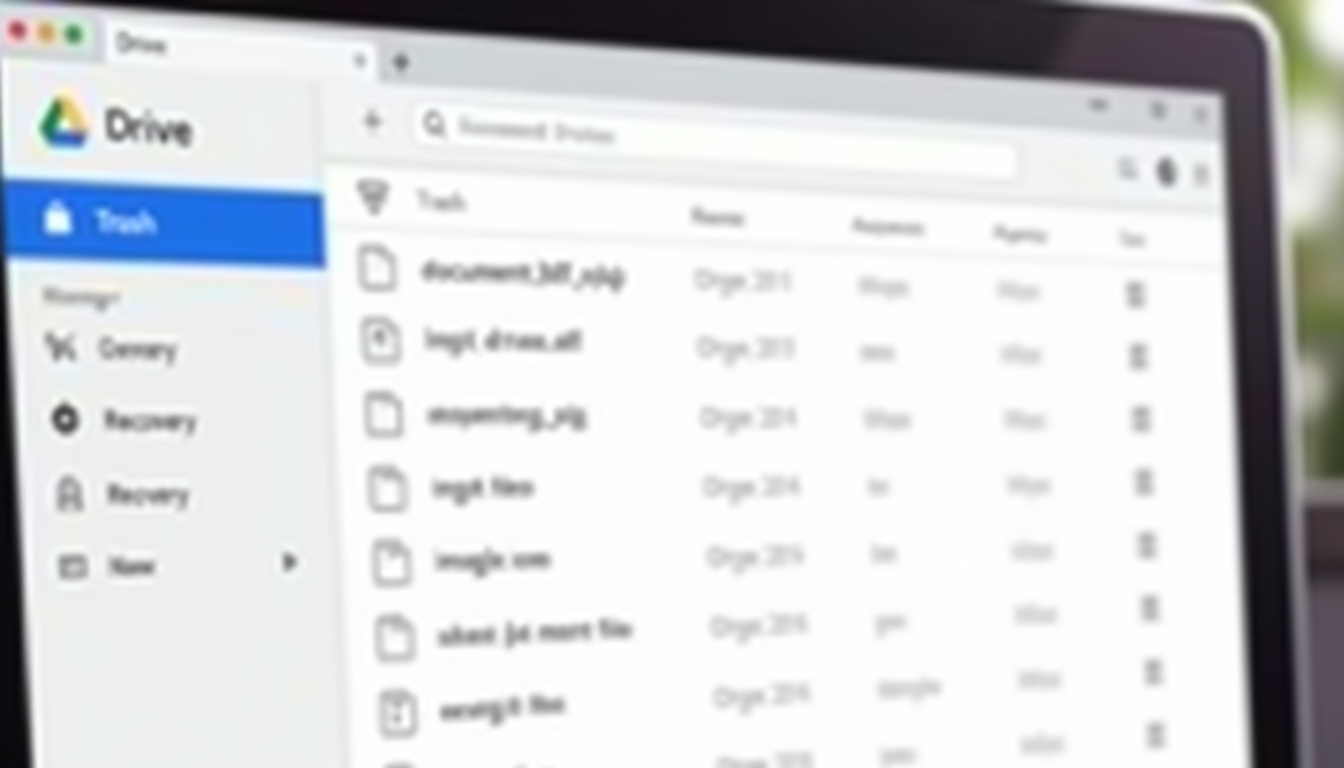
The Trash retains files up to 30 days on free accounts, with extended periods for paid.
Restoring Individual or Multiple Files in Google Drive
- Browse or search by name, type, or date.
- Select files by checking boxes (hold Ctrl for multiples on web).
- Click "Restore" at the top or right-click and select "Restore." Files return to original folders.
- Verify in your main Drive—search if needed.
Shared files may need owner permissions.
Using Version History for Overwritten Files in Google Drive
For overwritten files:
- Right-click the file > "Version history" > "See version history."
- Preview versions by timestamp and click "Restore this version."
- This reverts changes, such as in Google Docs edits.
Advanced Google Drive Recovery Options
For bulk needs, use Google Takeout at takeout.google.com: Select Drive and download archives. Google Workspace admins can reach support for deeper retrieval.
Google Drive Recovery Limitations in 2025
Free: 30 days; paid: Extended. Beyond limits, external backups are essential.
How to Recover Deleted Files from Dropbox in 2025
Dropbox excels in collaboration, with the "Events" tab tracking activities for quick deletion spotting in 2025 (Advance IT SaaS Management Guide).
Accessing Deleted Files in Dropbox
- Sign in at dropbox.com or open the app.
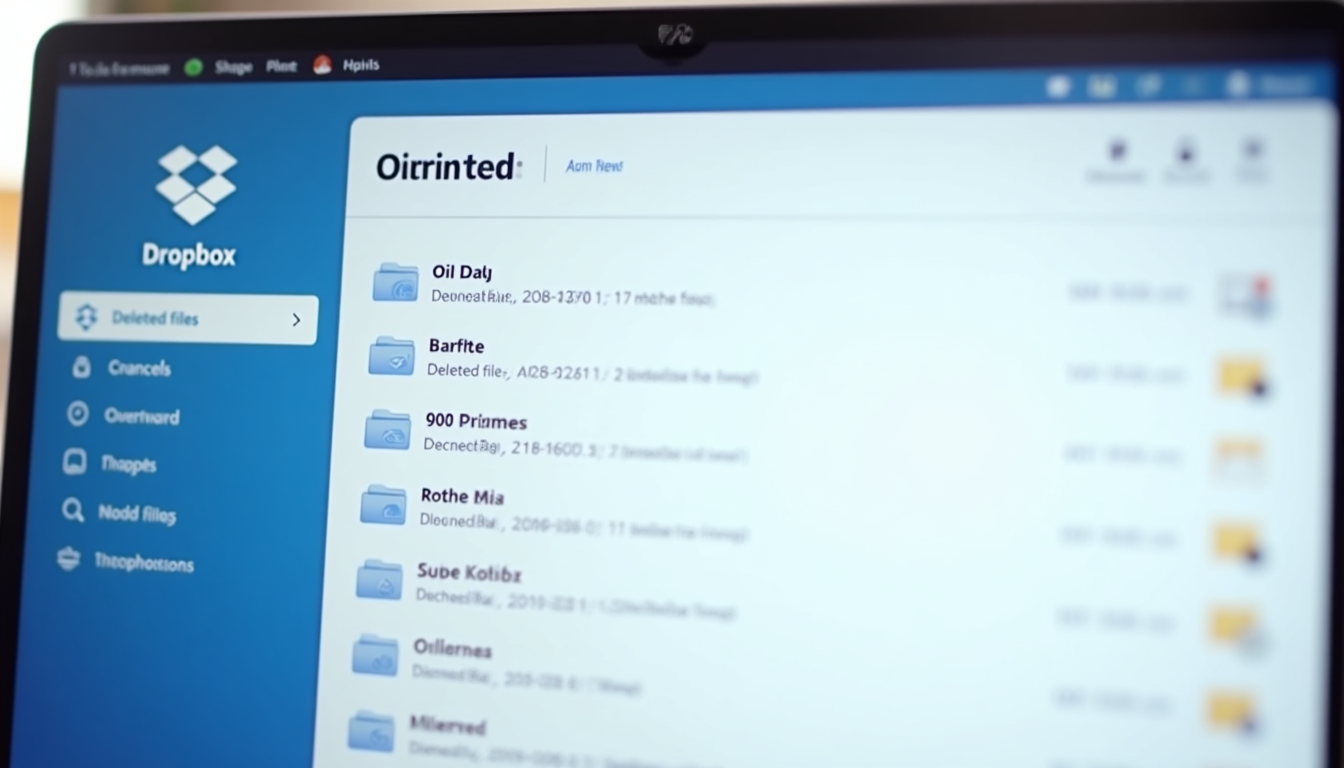
- Click "Deleted files" in the left navigation. Items are listed chronologically.
Retention: 30 days free, longer for paid.
Restoring Files in Dropbox
- Search or scroll by name/date—use filters.
- Check boxes > Click "Restore."
- Confirm; files return to original folders. Preview to verify.
Dropbox Version History and File Events
For altered files:
- Right-click > "Version history" > Browse, download, or restore versions.
- Use "Events" tab to track deletions and users.
Enable versioning in Dropbox Business.
Dropbox Rewind Feature for Advanced Recovery (Updated 2025)
For paid accounts:
- Go to dropbox.com/rewind and authenticate.
- Select a pre-deletion date; preview and rewind the account.
This surpasses standard retention.
The enhanced 2025 Rewind feature (paid accounts) enables account rollbacks, extending beyond basic 30-day retention (Advance IT SaaS Management Guide).
Dropbox Recovery Limitations
Basic: 30 days; paid: Longer. Business users can contact support.
How to Recover Deleted Files from OneDrive in 2025
OneDrive syncs with Windows, using version history to guard against deletions or overwrites. Keep personal data in OneDrive and team content in SharePoint (Advance IT SaaS Management Guide).
Accessing the Recycle Bin in OneDrive
- Log in at onedrive.com or via the app.
- Click "Recycle bin" on the left.

Restoring Files in OneDrive
- Locate files—sort by date or search.
- Select > Click "Restore" or right-click.
- Files return to original locations, including SharePoint.
OneDrive First vs. Second-Stage Recycle Bin
If emptied:
- Access "Second-stage recycle bin" (Microsoft 365 only, up to 93 days).
- Restore as before—admin rights may apply.
OneDrive Version History and Activity Feed
- Right-click file > "Version history" > Restore prior version.
- Check Activity pane for deletions or edits.
Enable during setup.
OneDrive Recovery Limitations in 2025
Personal: 30 days; Microsoft 365: 93 days. Use Windows tools for local sync issues.
To restore versions: Right-click > "Version history" in OneDrive/SharePoint.
Troubleshooting Common Issues in Cloud Storage File Recovery
Recovery hurdles arise but can be overcome when recovering deleted files from cloud storage.
File Not Found in Google Drive, Dropbox, or OneDrive
Causes: Permanent purge, wrong owner, or sync errors. Solutions: Search across folders; check activity logs for ownership.
Account-Specific Problems for File Recovery
Locked? Use recovery. MFA issues? Contact support. Enterprise? Seek admin help.
When Cloud Storage Recovery Fails
Turn to professional forensics or legal aid for vital data. Consider providers with longer retention. 31.2% malware incidents per Infrascale, then outages at 30.1%; human error drives deletions or misconfigurations. 72% rising cyber risks plague organizations, with cloud breaches costing $4.35 million on average.
Malware tops causes at 31.2% of incidents, followed by system outages (30.1%); human error often results in accidental deletions or misconfigurations, directly relevant to recovery failures (Infrascale Data Loss Statistics).
Verify licenses and update apps to sidestep third-party dangers (Infrascale Data Loss Statistics).
Security Best Practices for Post-Recovery
Stick to official tools—avoid unverified ones. After recovery, scan for malware and activate DLP to prevent leaks.
Conclusion: Mastering Cloud Storage File Recovery in 2025
Recovering deleted files from Google Drive, Dropbox, or OneDrive entails Trash/Recycle bin access, version history, and features like Rewind or second-stage bins. Variations stem from retention (30-180 days) and plans. Proactive steps—MFA, RBAC, audits—thwart most losses.
For businesses, data loss threatens survival—lacking a plan endangers data, trust, and operations (Infrascale Data Loss Statistics). In 2025, prioritize layered security against 85.6% cloud incident rates; skip unverified tools and trust official policies, as recovery isn't assured. Opt for paid plans with longer retentions and test routines often. To find the most secure options tailored to your recovery needs, start comparing providers with our Cloud Comparison Tool.
Prevent Future Data Loss
Implement backups and security today to safeguard your Google Drive, Dropbox, and OneDrive files.
Learn More Stats SaaS Management Tips$1,410 per minute downtime cost for small businesses on average (Infrascale Data Loss Statistics).