Introduction to Secure OneDrive to pCloud Migration in 2025
In the cloud storage landscape of 2025, migrating files from OneDrive to pCloud is essential for users prioritizing data privacy, security, and cost savings. As cyber threats like ransomware and AI-driven phishing intensify, switching to pCloud's zero-knowledge encryption offers superior protection over OneDrive's server-side scanning. For a deeper dive into how zero-knowledge encryption works and its benefits for privacy, check out our Zero-Knowledge Cloud Storage: 2025 Privacy Guide, which outlines key features and top providers. OneDrive integrates seamlessly with Microsoft tools like Outlook and Teams, but pCloud stands out with client-side encryption, lifetime plans, and no data access by the provider—ideal for GDPR, CCPA, and CMMC compliance.
With the 2025 CMMC rollout enforcing NIST SP 800-171/172 standards for over 300,000 DOD contractors handling Federal Contract Information (FCI) and Controlled Unclassified Information (CUI), secure cloud migrations are non-negotiable. Ransomware like LockBit targets clouds, and credential stuffing attacks surged 300% per the 2024 Verizon Data Breach Investigations Report (DBIR) source. pCloud mitigates these with end-to-end encryption and 2FA recommendations from sources like CUHK IT security guidelines.
300%
Rise in credential stuffing attacks in cloud environments (Verizon 2024 DBIR)
pCloud's advantages include affordable lifetime plans starting with one-time payments and the Crypto folder for AES 256-bit encryption. As AI threats grow, this migration ensures long-term data sovereignty without recurring fees.
This comprehensive guide covers how to transfer files from OneDrive to pCloud securely, including preparation, step-by-step methods, security best practices, and optimization tips for personal or business use in 2025.
Disclaimer: Back up all data prior to migration. Transfer times vary; a 1TB migration may take hours to days based on internet speed and file types.
For a quick overview of why migrate OneDrive to pCloud, see this comparison:
| Feature | OneDrive | pCloud |
|---|---|---|
| Encryption | Server-side (Microsoft access possible) | Zero-knowledge, client-side |
| Privacy Scanning | Yes, for compliance | No scanning |
| Plans | Subscription-based | Lifetime options |
| Integration | Deep Microsoft ecosystem | Cross-platform apps |
Prerequisites for Secure OneDrive to pCloud File Transfer
Proper preparation is key to a compliant and risk-free migration in 2025, aligning with CMMC, GDPR, and NIST standards. Assess accounts, tools, and data to avoid disruptions.
Setting Up Accounts for OneDrive to pCloud Migration
Start by creating or verifying a pCloud account. The 10GB free plan suits testing, while premium options (from 500GB) unlock unlimited transfers and Crypto folder access for sensitive files. For detailed setup instructions on using pCloud for secure backups and syncing, including encryption features, refer to our pCloud Guide: Secure Photo Backup & Sync in 2025, which applies broadly to file management. Register at the pCloud website or via app, opting for lifetime plans to bypass OneDrive subscriptions.
Confirm your OneDrive account is active with adequate space. Microsoft 365 users should update for API enhancements and enable export options in settings.
Essential Tools and Software for File Migration
Download the pCloud Drive app for Windows, macOS, Linux, iOS, or Android—it virtualizes pCloud storage for intuitive management.
For OneDrive, install the 2025-updated desktop sync client to enable selective syncing and API support, reducing download volumes.
Consider third-party options like MultCloud or rclone for direct cloud-to-cloud transfers. MultCloud avoids local storage needs but requires SOC 2 verification amid 2025 OneDrive API changes source.
Before using third-party tools, confirm SOC 2 compliance and evaluate API security risks, especially with 2025 OneDrive API updates.
Data Assessment Before Transferring Files from OneDrive to pCloud
Inventory files using a Research Data Security Checklist, classifying by risk: low/medium (de-identified) versus high (HIPAA, FERPA, CUI, GDPR, ITAR). Tools like TreeSize (Windows) or GrandPerspective (macOS) help visualize storage.
Eliminate duplicates via Duplicate Cleaner and flag large files—pCloud handles up to 5GB natively, with chunking for bigger ones. For high-risk data, review export controls and avoid personal devices source.
Back up locally to external drives, testing 1TB+ datasets source. Activate 2FA on both services per DUO guides source, use Bitwarden for passwords, and apply Data Classification policies source.
Step-by-Step Guide: How to Transfer Files from OneDrive to pCloud Securely
Choose a method based on data size for efficient 2025 migrations, leveraging direct APIs where possible.
Method 1: Manual Download and Upload for Small OneDrive to pCloud Transfers (Under 100GB)
This hands-on approach offers full control but requires local space.
Download from OneDrive
Use the web interface or app for selective sync—right-click folders to download only essentials, avoiding full exports.
Organize Locally
Sort files into folders on your drive, deleting duplicates and compressing archives if needed.
Upload to pCloud
Drag-and-drop via the desktop app or web; enable chunked uploads for files over 100MB.
Pros: Eliminates third-party risks; manual verification. Cons: Slow for larger volumes—4-8 hours for 50GB at 100Mbps. Use selective sync to limit exposure source.
Method 2: pCloud's Native Tools for Direct OneDrive to pCloud Migration (Best for 2025)
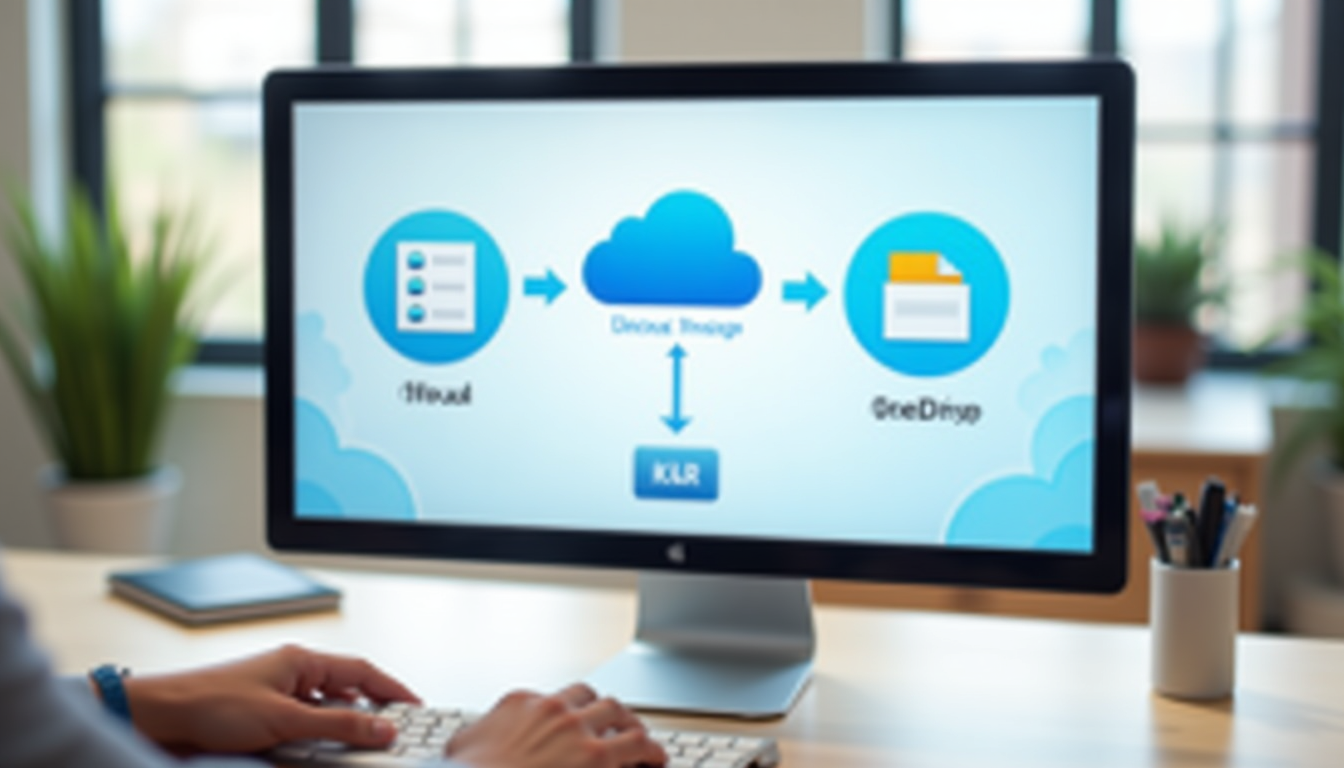
pCloud's 2025 API updates enable seamless OneDrive connections without downloads, perfect for medium/large datasets.
- Enable OneDrive in pCloud's "Connections" settings (OAuth authorization limits scope).
- Choose folders/files in the migration interface.
- Start transfer with pause/resume and tracking features.
Target 100Mbps+ connections. Pros: Efficient (1TB in 1-2 days); space-saving. Cons: Internet-dependent; watch API limits.
Method 3: Third-Party Tools for Large-Scale Secure Transfers
Automate with MultCloud or Cloudsfer via APIs (read-only OneDrive access). Map folders, schedule, and use DTAs/MTAs for compliance source. Prioritize SOC 2/GDPR providers like pCloud source.
Pros: Scales well; ongoing syncs. Cons: Vet for security vulnerabilities.
Security Best Practices for OneDrive to pCloud File Migration in 2025
Follow NIST SP 800-53 amid rising ransomware and AI threats like LockBit [source](https://www.itsc.cuhk.edu.hk/sitemap/].
Pre-Migration Security Measures
Mandate 2FA: OneDrive with Microsoft Authenticator, pCloud via app/SMS—to counter 300% credential stuffing growth source. Use VPNs like Mullvad on wired connections, avoiding public Wi-Fi source.
Implement access controls by granting only necessary permissions during migration and revoking them immediately after completion to minimize exposure.

Protecting Data in Transit During Transfer
Encrypt client-side with VeraCrypt or pCloud Crypto for high-risk files needing approval source. Enforce VPNs and secure policies for remote access [source](https://www.itsc.cuhk.edu.hk/sitemap/]. Address cross-border risks and export controls source.
Verifying Integrity Post-OneDrive to pCloud Transfer
Match counts/sizes; compute checksums (MD5/SHA-256) with HashCalc. Scan via antivirus, revoke permissions, and limit access source. Audit for malware and dispose originals securely source.
Post-Migration Optimization for pCloud After OneDrive Transfer
Streamline your setup and safely retire OneDrive.
Organizing and Securing Files in pCloud
Structure folders, tag files, and set expiring shares. Activate version history (30 days free, extended in premium) and locking. Automate external backups.
Version History
Track changes and restore previous versions easily.
File Locking
Prevent unauthorized edits during collaboration.
Auto Backups
Schedule regular syncs for ongoing protection.
Safely Decommissioning OneDrive After Migration
Delete files (Shift+Delete), clear recycle bin, cancel subs, and export metadata. Dispose physical media post-verification source.
2025 Performance Enhancements in pCloud
Use edge caching for speed. Connect via Zapier or pCloud for Teams.
Troubleshooting OneDrive to pCloud Migration Issues
Handling Transfer Errors
Resume interrupted jobs or batch 10GB chunks to bypass limits.
Resolving Compatibility Challenges
Convert Office files with LibreOffice; confirm media support (MP4/JPG).
Managing Security Alerts
Whitelist pCloud in antivirus; review logs for anomalies.
Professional Support Options
Contact pCloud support, visit r/pcloud on Reddit, or engage enterprise services.
Conclusion: Why Migrate OneDrive to pCloud in 2025 for Enhanced Security
Transferring files from OneDrive to pCloud in 2025 delivers zero-knowledge encryption and lifetime value, vital for CMMC and threat resilience. Adhere to prep steps, methods, 2FA/VPN/checksums, optimization, and troubleshooting.
Final Tip: Pilot with 1GB, then monthly backups.
Key Resources: - pCloud Documentation: pcloud.com/docs - OneDrive Export Guide: support.microsoft.com/en-us/office/export-and-delete-your-data - Privacy Insights: Verizon DBIR and NIST CMMC
Ready to Secure Your Files?
Before committing to pCloud, use our Cloud Comparison Tool to compare secure options under $5 and find the perfect fit for your needs, including pCloud's lifetime plans. Start your pCloud lifetime plan today for worry-free storage.
Sign Up for pCloudSecure your data migration from OneDrive to pCloud and thrive in 2025's privacy-focused cloud era.