pCloud Guide: Secure Photo Backup & Sync in 2025
Introduction to pCloud Secure Photo Backup
In 2025, protecting your digital photos from loss, theft, or breaches is essential, especially with high-resolution images from smartphones, cameras, and AR/VR devices flooding your library. pCloud emerges as a top choice for secure photo backup and sync, offering zero-knowledge encryption that keeps your files private—encrypted on your device before upload, with only you controlling access, as featured in our Best Secure Cloud Storage for Photographers in 2025, which compares top options like pCloud for handling RAW files and privacy needs.
pCloud's 2025 updates make it ideal for photo backup solutions, featuring enhanced security, AI-powered organization, and seamless integration with next-gen devices like Meta Quest or Apple Vision Pro. This addresses rising data privacy concerns in a GDPR-compliant era, ensuring your photos remain safe from surveillance and hacks.
Key advantages of pCloud for secure cloud photo storage include automatic backups to protect your Camera Roll, real-time sync across devices like phones, tablets, laptops, and smart TVs, and end-to-end encryption with pCloud Crypto. Compared to Google Photos (unlimited but scans data) or iCloud (Apple-locked with higher costs), pCloud delivers better value—lifetime plans from $199 for 500GB, no ads, and no forced sharing.
This guide is for photographers handling RAW files, families saving memories, and creators needing private photo sync services. pCloud's features future-proof your visual assets against evolving threats.
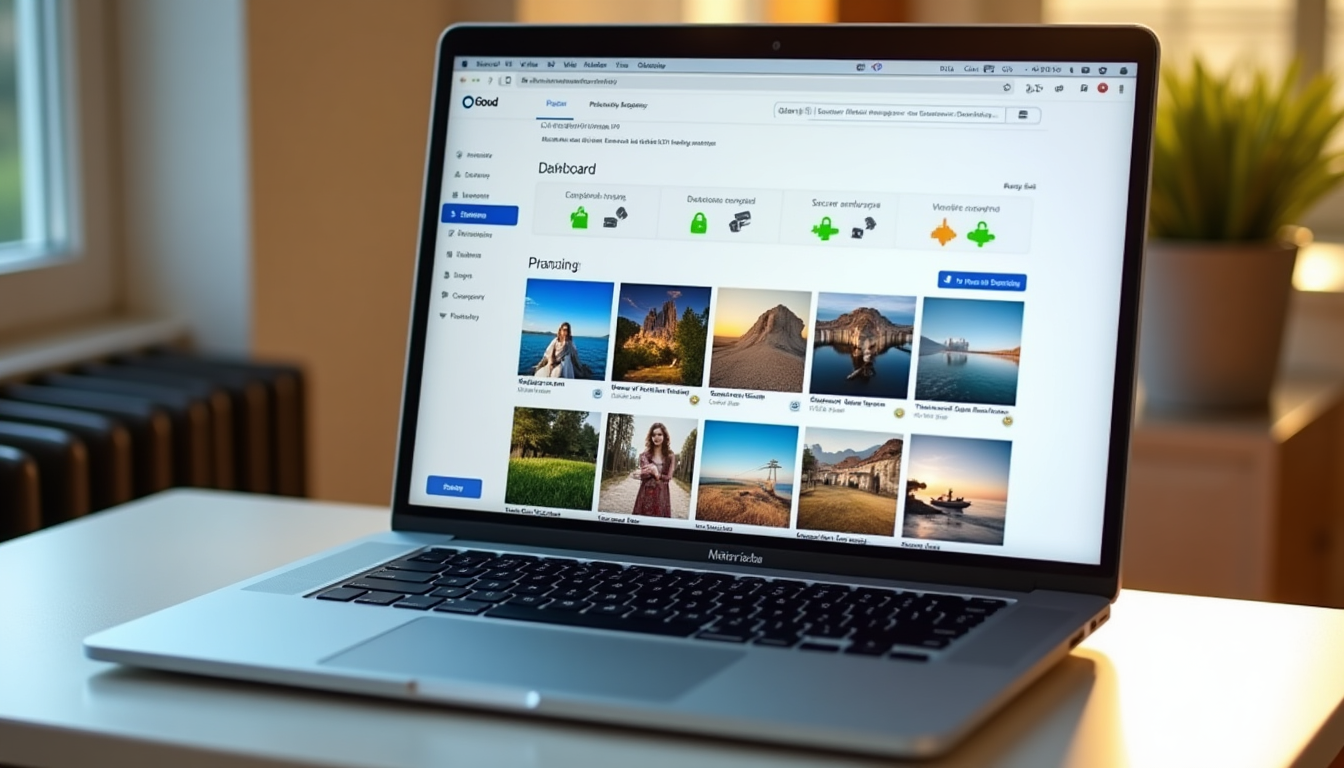
Getting Started with pCloud for Photo Backup
Starting with pCloud for secure photo backup is simple, catering to beginners and experts. Sign up at pCloud.com or via the app. The 2025 free plan now offers 10GB storage—perfect for thousands of high-res photos—earned through referrals or backups. Paid tiers begin at $49.99/year for 500GB, scaling to 2TB or lifetime options with Crypto add-ons.
Download the app from official sources: Windows 10/11, macOS Ventura+, Linux (Ubuntu), App Store (iOS 15+), or Google Play (Android 10+). The web version works in any browser for quick access, with apps under 100MB for fast installs.
Prioritize security in setup: Use a strong 12+ character password mixing letters, numbers, and symbols. Enable 2FA with apps like Google Authenticator, now including biometrics on mobile. Choose servers—EU (Luxembourg) for GDPR alignment or US—based on 2025 privacy regulations.
GDPR does not mandate data localization within the EU but requires appropriate safeguards for transfers outside the EEA under Articles 44-50, simplifying compliance for pCloud users selecting EU servers during initial setup, according to a GDPR compliance analysis. The EU-US Data Privacy Framework allows adequacy for US servers in pCloud for participating organizations, but EU servers are recommended to avoid complexities from the Schrems II ruling on US surveillance laws like FISA 702. Select EU-based servers (e.g., Luxembourg) during setup to align with GDPR and avoid fines up to 4% of global revenue for non-compliance in photo backups, as outlined in a legal insights report.
The CLOUD Act enables US law enforcement to access data from US-based cloud providers like pCloud's US servers, even for non-US citizens' photos, prompting EU server choice for setup to mitigate cross-border risks, according to an analysis of its GDPR implications. Over 80% of global cloud data flows involve US providers, making region selection crucial in pCloud setup for GDPR-compliant photo sync amid 2025 privacy trends like the Digital Markets Act (DMA) and AI Act.
After setup, pCloud appears as a virtual drive for easy drag-and-drop. Test by uploading a photo and accessing it elsewhere to confirm pCloud photo sync works.
Setting Up Secure Photo Backup with pCloud
Automate pCloud secure photo backup via the app's "Backup" tab. On desktop, select Camera Roll (Windows: Pictures) or Photos library (macOS). Mobile users grant DCIM/Pictures access on launch.
Enable automatic backups with these steps:
Choose Backup Folders
In the pCloud app, click "Add Backup" and select photo directories. Toggle "Automatic" to scan for new files on device events like photo capture.
Set Frequency
Opt for real-time (Wi-Fi only to save data) or scheduled (e.g., nightly). 2025's update allows bandwidth limits to prevent hitting mobile data caps.
Confirm and Test
Run an initial sync, then take a test photo to ensure it uploads securely.
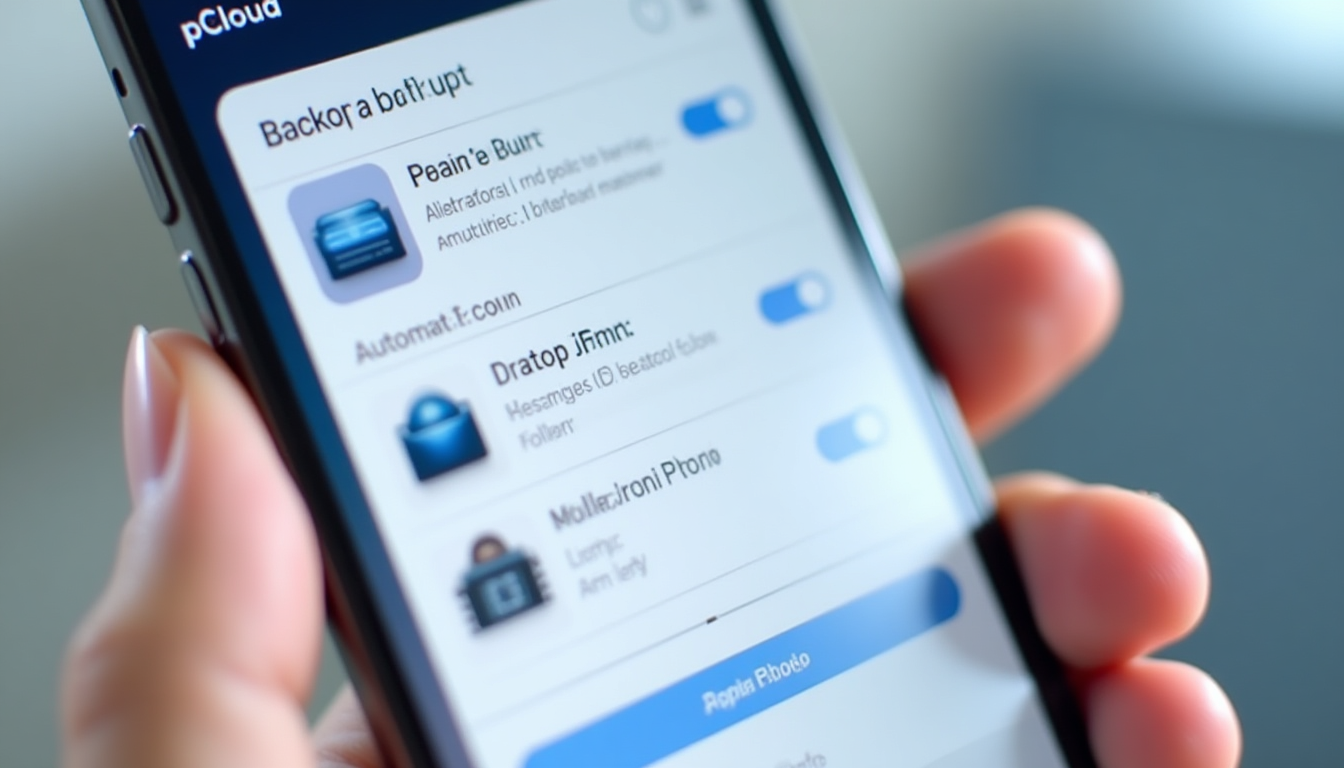
For top security, add pCloud Crypto ($3.99/month or $125 lifetime): Buy in-app, create a key, and encrypt a "Secure Photos" folder. Choose selective or full backups, schedule via cron settings, and limit uploads to 50% bandwidth.
In 2025, real-time RAW backups integrate with cameras via Bluetooth/Wi-Fi Direct. AI tags metadata on-device for privacy, categorizing by faces or locations.
This ensures pCloud photo backup resumes after outages, safeguarding against failures.
For large RAW libraries, use selective backups to target only new 2025 captures, optimizing **pCloud secure photo sync** speed and reducing upload times by up to 40% on mobile devices.
Syncing Photos Across Devices Using pCloud
pCloud's photo sync across devices turns storage into a connected hub. Use one-way backup for secure archives (cloud-only updates) or two-way sync for collaborative edits.
| Sync Mode | Pros | Cons |
|---|---|---|
| One-Way Backup | • Simple, secure for archives • No risk of cloud edits affecting local files |
• No real-time collaboration • Manual pulls for cloud changes |
| Two-Way Sync | • Seamless editing across devices • Handles conflicts with version history |
• Potential for loop edits • Higher bandwidth use |
In the "Sync" tab, set folder rules (e.g., "2025 Vacations"), enable conflict resolution with timestamps, and use selective sync for thumbnails to save space.

Enjoy cross-platform ease: Upload from iPhone, edit on Windows pCloud Drive, view on Android. Offline caching and 2025 files-on-demand reduce storage by 90%. Background sync and widgets enhance mobile use, with 5G/6G edge computing minimizing latency.
Photographers benefit from instant RAW edits syncing to phones for previews.
Advanced pCloud Features for Photo Management in 2025
Elevate pCloud photo management with albums, tags (#Family, #Travel), and smart search ("beach 2025"). 2025 AI adds opt-in facial/object recognition, processed locally for privacy.
AI Organization
Use facial and object detection to tag and search photos effortlessly, enhancing discoverability for large libraries.
Secure Sharing
Generate password-protected links with expiration (e.g., 7 days), ideal for client previews or family shares without full access.
Versioning & Recovery
Access up to 30 days of history (extendable to 1 year premium), restoring deleted or edited photos with one click.

Share via QR codes or embeds, with logs for tracking. Integrate with Lightroom/Photoshop for direct imports or API automations. AI removes duplicates, versioning fixes errors—all encrypted.
Best Practices for pCloud Security and Photo Efficiency
Maintain pCloud photo backup security by avoiding public Wi-Fi (pair with VPNs like ExpressVPN) and enabling activity logs for alerts. Compress JPEGs losslessly (30% savings) and deduplicate files.
Tweak performance: Limit sync to 80% bandwidth, use SSDs, and enable auto-updates for quantum-resistant encryption mid-2025. Opt for lifetime plans to beat inflation.
44%
of organizations faced data breaches in 2021 often from third-party cloud services (techgdpr.com)
Use TLS encryption, minimize data, and assess risks. Hybrid EU/US servers balance GDPR and access—EU for sensitive photos. With 144 global localization laws by 2021 (PIPL, PDL, DPDP), 60% of users prefer region-specific storage (LexisNexis).
Conduct vendor risk assessments and opt for EU sovereignty servers to enhance photo privacy (techgdpr.com).
These steps scale secure photo sync efficiently.
Troubleshooting pCloud Photo Backup Issues
Resolve pCloud sync problems: For errors, check firewalls (add exceptions), restart with "Resync," or use history for conflicts. Upgrade for storage alerts; revoke access and rotate keys for breaches.
iOS: Verify Photos permissions; Android: Whitelist from battery optimization; Windows: Unblock pCloud.exe. Use 24/7 support, knowledge base, or forums—check 2025 notes for AI/6G fixes.
Conclusion: Secure Your Photos with pCloud Today
pCloud delivers robust secure photo backup and sync in 2025, from encrypted setups and device syncing to AI tools and AR/VR support, all GDPR-aligned. Test the 10GB free plan, then upgrade for more, or explore alternatives with our Cloud Comparison Tool, which lets you compare secure providers based on storage needs and security features to find the perfect match.
Future updates include blockchain for authenticity and VR handling. Protect your library now.
Ready to Secure Your Photos?
Sign up for pCloud's free 10GB plan and start your secure photo backup today.
Get Started with pCloudFAQ: pCloud Photo Backup and Sync
What makes pCloud best for secure photo backup in 2025?
pCloud offers zero-knowledge encryption, AI organization, and 10GB free storage, outperforming competitors in privacy and value.
How does pCloud photo sync work across devices?
One-way or two-way modes ensure seamless updates, with offline access and files-on-demand for efficiency.
Is pCloud GDPR-compliant for photo storage?
Yes, especially with EU servers, aligning with 2025 laws to protect your data from breaches.