Introduction to Dropbox Setup for Secure Collaboration
Dropbox has evolved significantly since its founding in 2007 as a simple file-syncing tool. By 2025, it serves as a robust, secure cloud storage solution used by millions worldwide for secure file sharing and team collaboration. What began as basic device synchronization has become a comprehensive platform featuring zero-trust security models, AI-driven threat detection, and seamless integrations with modern workflows. In a time when remote and hybrid work prevail, Dropbox excels at protecting data while facilitating effortless collaboration in distributed teams.
Secure file sharing and collaboration are essential in today's distributed environments, where over 80% of businesses rely on cloud storage for Dropbox setup and management. With teams spanning time zones and devices, methods like email attachments or local drives create risks such as data leaks and version conflicts. Cloud solutions like Dropbox mitigate these through encrypted storage, granular access controls, and real-time editing. This matters as cyber threats like ransomware and phishing increasingly target remote systems, making 2025 Dropbox security features critical.
Key 2025 benefits of Dropbox include advanced encryption for data at rest and in transit, customizable access controls, and real-time collaboration tools comparable to on-site systems. Integrations with Microsoft 365 and Google Workspace enable editing within preferred apps, enhancing efficiency—for example, co-authoring a Word document or syncing Google Sheets into Dropbox folders for seamless workflows, as explored in our guide on the best secure cloud storage for teams 2025 integrations, which highlights top options for boosting collaboration security.
This guide outlines how to set up Dropbox for secure file sharing and collaboration, from beginners to advanced users. It covers account creation through 2025 features like AI-driven security for detecting anomalous access and zero-trust verification for every user and device. Whether you're a freelancer sharing designs or a team lead managing projects, these steps unlock Dropbox's potential for productivity and data protection.
Before starting, prepare a device with internet access and a Dropbox account. The free Basic plan offers 2GB storage for beginners. Paid plans include Plus (2TB, $11.99/month), Family (2TB for up to six users, $19.99/month), Professional (3TB with advanced tools, $16.58/month), Business (from $15/user/month), and Enterprise (custom options). If needed, we'll begin with signup.
26
billion – Projected global market for online collaboration software by 2025, driven by remote/hybrid work, with over 80% of businesses relying on cloud storage (AgilityPortal, 2023)
Companies using virtual collaboration tools like Dropbox experience a 20-25% productivity increase, according to a McKinsey study, through centralized resources and real-time editing (AgilityPortal). This highlights the value of proper Dropbox setup for secure file sharing in 2025.
Ready to Get Started?
Sign up for your free Dropbox Basic account today and explore secure file sharing features. Create Account Now
Creating and Securing Your Dropbox Account in 2025
Signing Up for a New Dropbox Account
Sign-up is simple for secure Dropbox setup. Visit dropbox.com and click "Sign up" in the top right. Select a plan—Basic is free, or view paid options on the pricing page for enhanced collaboration tools. Provide your email and create a strong, unique password (at least 12 characters, mixing letters, numbers, and symbols). Avoid reusing passwords from other sites. Dropbox sends a verification email—check your inbox or spam to confirm.
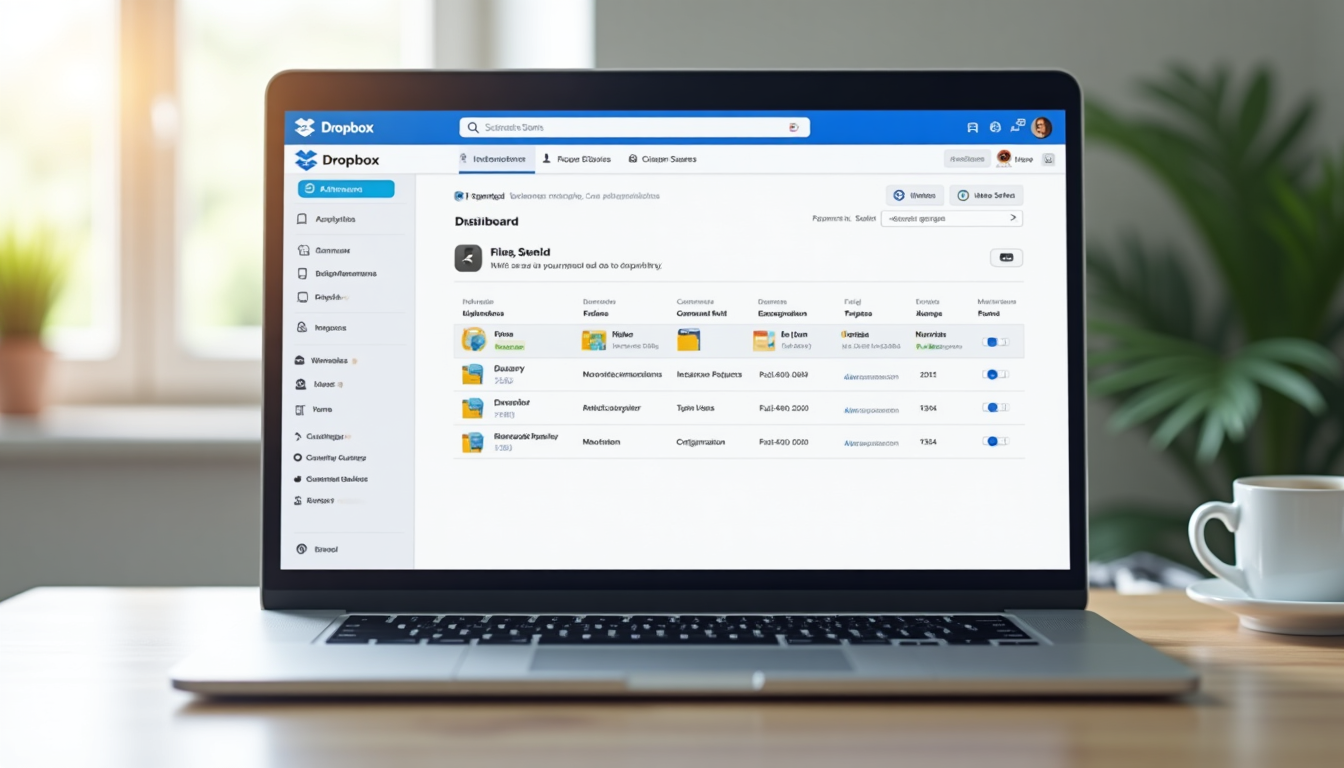
After verification, access your dashboard, the central hub for files, shares, and settings. For 2025 Dropbox setup, the interface includes AI recommendations for folder organization during onboarding to optimize secure file sharing.
Enabling Multi-Factor Authentication (MFA) for Dropbox Security
MFA adds a second verification layer beyond passwords, crucial for Dropbox collaboration in 2025. Dropbox's MFA incorporates biometrics like fingerprints or facial recognition on compatible devices for seamless use, as outlined in strengthened cybersecurity regulations.
To enable:
- Log in to Dropbox, click your avatar in the top right, and select "Settings."
- Go to the "Security" tab.
- Under "Two-step verification," click "Enable" and connect an authenticator app (e.g., Google Authenticator or Authy), SMS codes, or a hardware key like YubiKey. For biometrics, choose device integration if supported by your OS.
MFA is essential—it reduces unauthorized access by up to 99%, per NIST SP 800-63B, and is prioritized in cloud tools like Dropbox, where 43% of cyberattacks target small businesses (AgilityPortal; Federal Register, 2025). Biometrics use MFA factors like something you are (e.g., your face or fingerprint) with something you know (password), countering phishing for better secure file sharing.
99
% – Reduction in unauthorized entry with Multi-Factor Authentication (MFA), per NIST SP 800-63B (Federal Register, 2025)
MFA and biometrics can reduce breach risks by 80-90%, supporting HIPAA compliance in Dropbox Enterprise plans for advanced collaboration, as detailed in our overview of the top HIPAA-compliant cloud storage for healthcare 2025, which evaluates solutions for protecting sensitive data (Federal Register, 2025).
Configuring Privacy and Security Settings in Dropbox
Once active, refine privacy settings for 2025 Dropbox security. In Settings > Security, link a password manager like LastPass or Bitwarden for secure auto-fills. Add recovery options with a backup email or phone, and check active sessions to sign out unknown devices.
Dropbox uses AES-256 encryption at rest and SSL/TLS in transit. For 2025, updates align with GDPR for EU users and HIPAA for healthcare in Enterprise plans, including risk assessments for biometric access (Federal Register). Enable session timeouts and IP restrictions for added protection in secure file sharing.
Regularly review privacy settings to comply with regulations like GDPR and HIPAA. Dropbox's 2025 updates mandate encryption for all shares, but always conduct your own risk assessments for sensitive data.
These steps build a strong foundation for cloud storage security and Dropbox collaboration.
Installing and Setting Up Dropbox on Devices for 2025
Downloading the Dropbox Desktop and Mobile Apps
Dropbox syncs across platforms, with 2025 enhancements improving cross-platform efficiency and reducing bandwidth use by up to 30% for large files in secure file sharing.
For desktop:
- Visit dropbox.com/download and choose your OS: Windows 10+, macOS 10.15+, or Linux (via package managers).
- Download, install, and sign in. It creates a local Dropbox folder.
For mobile: Search "Dropbox" in the App Store (iOS 15+) or Google Play (Android 8+), install, and log in. Turn on notifications for sharing alerts to support real-time collaboration.
Syncing Files and Folders in Dropbox
After installation, drag files to your Dropbox folder for automatic syncing. Use selective sync (right-click folder > "Selective Sync") to select local downloads, conserving space.
Smart Sync, a 2025 highlight, keeps files cloud-based as placeholders on devices. Right-click a file > "Smart Sync" > "Online-only." This suits remote teams, where over 70% work part-time remotely (AgilityPortal), enhancing Dropbox setup for hybrid workflows.
Organizing Your Dropbox Structure for Secure Collaboration
Effective organization enhances Dropbox collaboration. Create folders via web or app: Click "+" > "Create folder," then add subfolders (e.g., Projects > ClientX > Designs) for better file management.
Apply tags (right-click > "Add tag") for sorting, such as #Urgent or #Review. Star key items for quick access, and use AI-powered search for contextual queries (e.g., "budget docs from Q1") in 2025 features.
Tags
Categorize files for easy filtering, e.g., #Confidential for secure shares.
Stars
Pin favorites to your sidebar for one-click access in busy workflows.
AI Search
2025 feature: Natural language queries like "Find sales reports edited by team."
This structure supports efficient secure file sharing and team productivity.
Secure File Sharing Basics with Dropbox in 2025
Sharing Individual Files or Folders Securely
Sharing is fundamental in Dropbox for collaboration. Right-click a file or folder in the app, or use the web's "Share" button. Add recipient emails or create a link for controlled access.
For links: Set expiration (e.g., 7 days) and download limits (e.g., 5 views) to manage access in secure file sharing. Copy and distribute via email or chat.
Setting Permissions and Access Levels in Dropbox
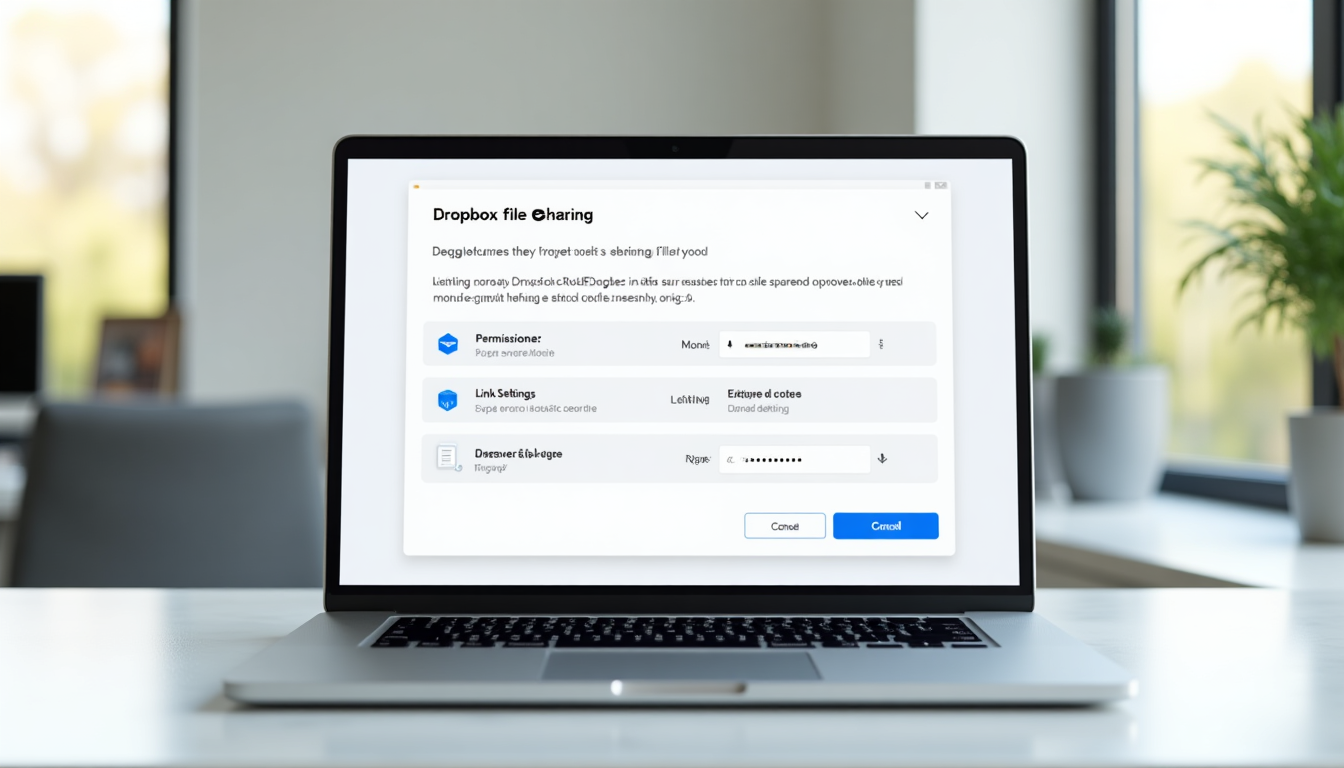
Permissions curb over-sharing in Dropbox setup. For links, select "View only" (no edits), "Edit" (full access), or "Comment" (feedback only) to tailor collaboration.
Password-protect links in share settings—2025 introduces rotating dynamic passwords for sensitive needs. Biometrics bolster mobile sharing, cutting risks from 540+ breaches in 2023 affecting over 112 million individuals (Federal Register). Dropbox enables secure large-file exchanges with controls, real-time editing, version history, and notifications via email or Slack (AgilityPortal).
Managing Shared Links Securely in Dropbox
Monitor via share details: Track access times and revoke with "Disable link." Set notifications for downloads through email or Slack.
For 2025 Dropbox setup, apply zero-trust for re-verification per access to maintain security.
Advanced Dropbox Collaboration Features for 2025
Real-Time Editing and Commenting in Dropbox
Dropbox Paper supports real-time co-editing for documents in secure collaboration. Create one via "+" menu, invite users, and see live changes. 2025's AI co-pilot offers suggestions like rephrasing or summaries for efficient workflows.
Version history (right-click > "Version history") retains up to 180 days of changes on paid plans, with simple restores to prevent data loss.

Team Collaboration Tools for Business and Enterprise Plans
In admin settings, build shared workspaces with team-only folders for Dropbox collaboration. Use role-based access control (RBAC)—admins assign viewer, editor, or owner roles.
Admin dashboards track usage and enforce policies for scalable secure file sharing.
Integrations for Seamless Dropbox Workflows
Link Dropbox to Zoom for meeting shares, Trello for tasks, or Adobe Creative Cloud for designs. 2025 AI analyzes files (e.g., document sentiment) and automates backups.
It integrates with Google Workspace for real-time Google Docs editing and Microsoft 365 for Word, Excel, and Teams workflows (AgilityPortal), boosting productivity.
Leverage integrations to boost productivity: Dropbox with Microsoft 365 allows real-time co-authoring in Teams, cutting email chains and fostering innovation (AgilityPortal, 2023).
These tools advance Dropbox collaboration for intricate projects in 2025.
Best Practices for Dropbox Security and Efficiency in 2025
Avoiding Common Pitfalls: Phishing Awareness and Regular Audits
Educate on phishing—always verify links for secure Dropbox setup. Perform monthly audits: Check shares and sessions in settings to maintain collaboration safety.
Monitoring Activity with Dropbox Audit Logs and Alerts
Business plans provide logs (Admin > Reports). Configure alerts for unusual logins to enhance secure file sharing.
Scaling for Teams: Migrating from Other Platforms like Google Drive
Use Google Takeout to export, then import to Dropbox. Employ bulk tools for transitions to support growing teams, including insights from our best cloud storage for remote teams 2025 guide, which compares options like Google Drive and Dropbox for hybrid setups.
Mobile Security Best Practices for Dropbox Apps
Activate app PINs or biometrics in mobile settings. Enable remote wipe features. Use VPNs like ExpressVPN on public Wi-Fi for protected access.
Future-Proofing Dropbox with Quantum-Resistant Encryption
2025 introduces quantum-resistant algorithms against new threats. Opt into beta features and align with HIPAA/GDPR changes, potentially finalizing after the March 7, 2025, comment period (Federal Register).
Implement MFA and biometrics to counter ransomware (up 20% in healthcare) and support hybrid work amid AI risks (Federal Register). Use Paper's commenting, annotations, templates, and change tracking for team efficiency (AgilityPortal). Scalable MFA prevents breaches averaging $10.1 million in 2024.
10.1
million – Average cost of data breaches in 2024; MFA and biometrics in Dropbox help mitigate this (Federal Register, 2025)
Cloud tools like Dropbox focus on integrations and security updates for 2025 threats (AgilityPortal).
Troubleshooting Common Dropbox Issues in 2025
Sync Errors and Resolution Steps
For sync issues in Dropbox setup, verify internet and restart the app. Clear cache in Preferences > Fix > "Reset sync." Rename conflicts manually.
Follow these steps for ongoing problems:
Check Connection
Ensure stable Wi-Fi; toggle airplane mode.
Update App
Download latest version from dropbox.com.
Contact Support
Use in-app help or chat.
Access Denied or Permission Problems in Dropbox
Adjust share settings or request owner updates. Clear browser cache for web access to resolve collaboration hurdles.
Data Recovery and Support Resources for Dropbox
Recover deleted files within 30 days (180 on paid plans). Consult the Dropbox Help Center or 2025 AI chatbots for quick fixes.
Note: Features may change; check official docs for the latest on secure file sharing.
Conclusion: Optimize Your Dropbox Setup for 2025 Success
Setting up Dropbox for secure file sharing and collaboration in 2025 means securing accounts, installing apps with smart sync, organizing for teams, controlling shares, and using advanced tools like AI integrations. This provides encryption, real-time edits, and productivity boosts essential for hybrid work and Dropbox collaboration.
Begin with the free plan, then upgrade for teams—try Business trials. Explore Dropbox's blog for 2025 updates like quantum encryption, or start comparing it with other secure providers using our Cloud Comparison Tool, which helps you evaluate options based on storage needs and security features. Secure, collaborate, and thrive with these best practices.
Upgrade Your Workflow Today
Discover paid plans for unlimited secure file sharing and advanced features. View Plans and Start Trial